|
|
ProPresenter Reporter Help
|
|
|
|
|
|
|
ProPresenter Reporter is designed to work with ProPresenter® for the purpose of extracting the information needed to satisfy the requirements of reporting song usage to CCLI.
|
|
|
|
|
|
ProPresenter 5 and/or 6 must be present on the computer. If both are detected, you will get a choice of which to choose for the purpose of running a report. If neither are detected, ProPresenter Reporter can not run.
Initially, you will be in Unregistered Mode.
Unregistered Mode is fully functional, however you will receive no support, and you will be pestered to register the software.
When presented with the Unregistered Mode window, you can register your copy of ProPresenter Reporter, activate your copy if you have received an activation key,
or continue in Trial (Unregistered) mode. Screen shots shown below are for macOS 10.13 High Sierra. There will be slight differences for other operating systems

If you click the Trial button, you will see something similar to following, which will vary slightly in appearance dependent upon the version(s) of ProPresenter installed 
Choose start and end dates and click the Report… button. The amount of time to process your data is dependent on the size of your playlists file.
After processing is complete, the report will be shown:
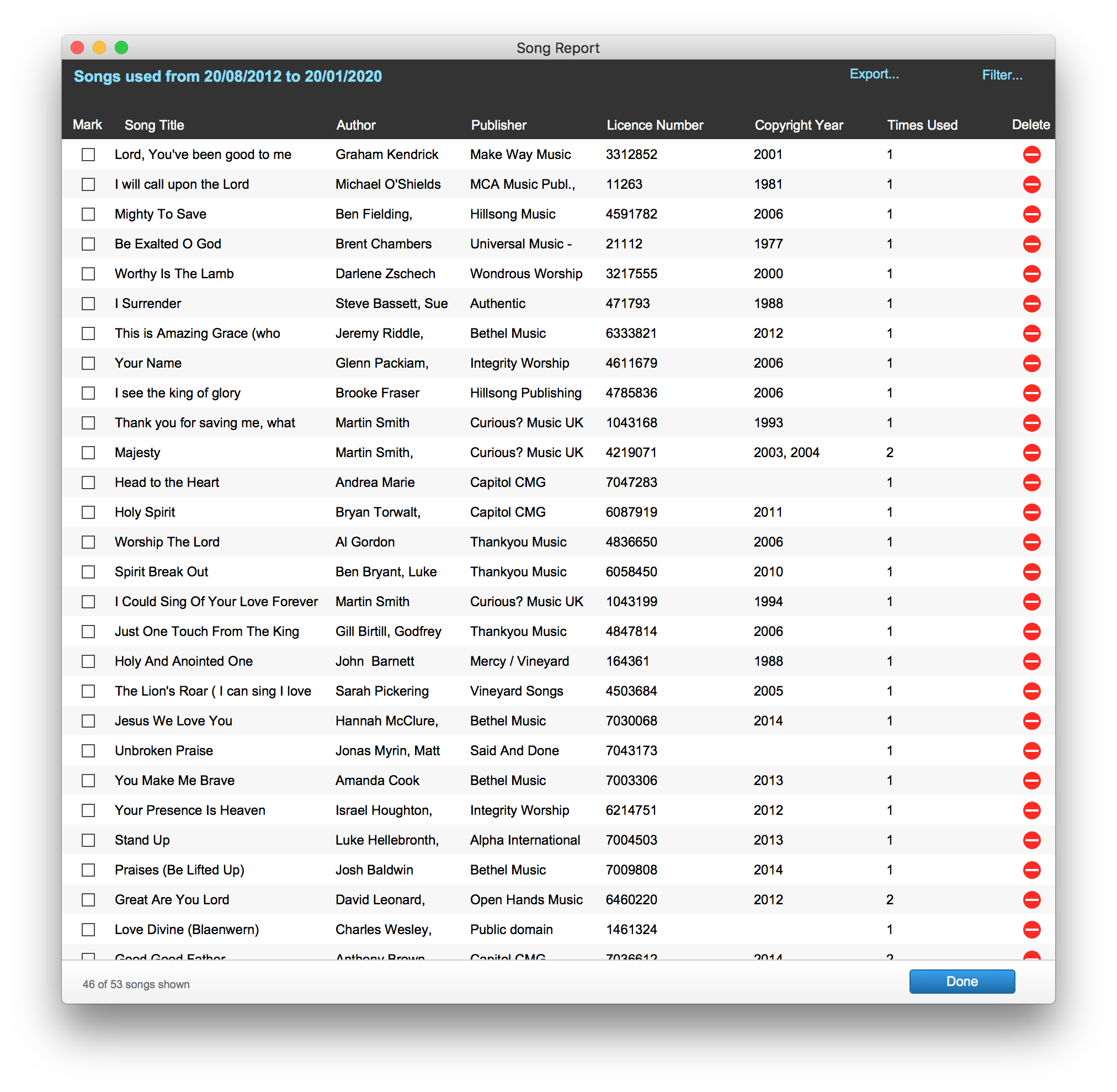
At this point, you can export your report right away by clicking on the Export… button at the top of the Song Report window. 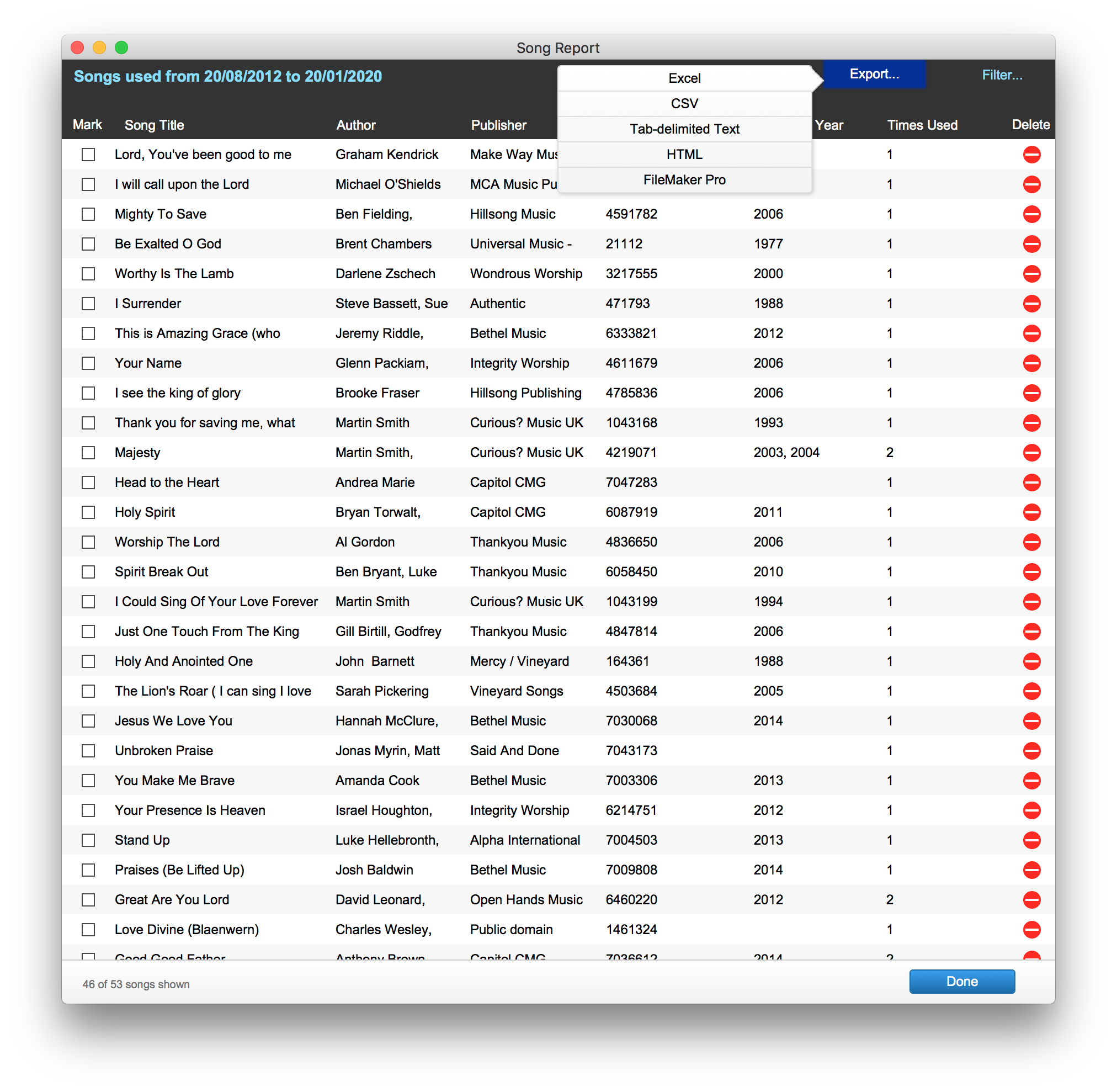
After selecting the format of the export, a file saving window will appear.
If you click on the Filter… button you will get a choice of categories to report on:
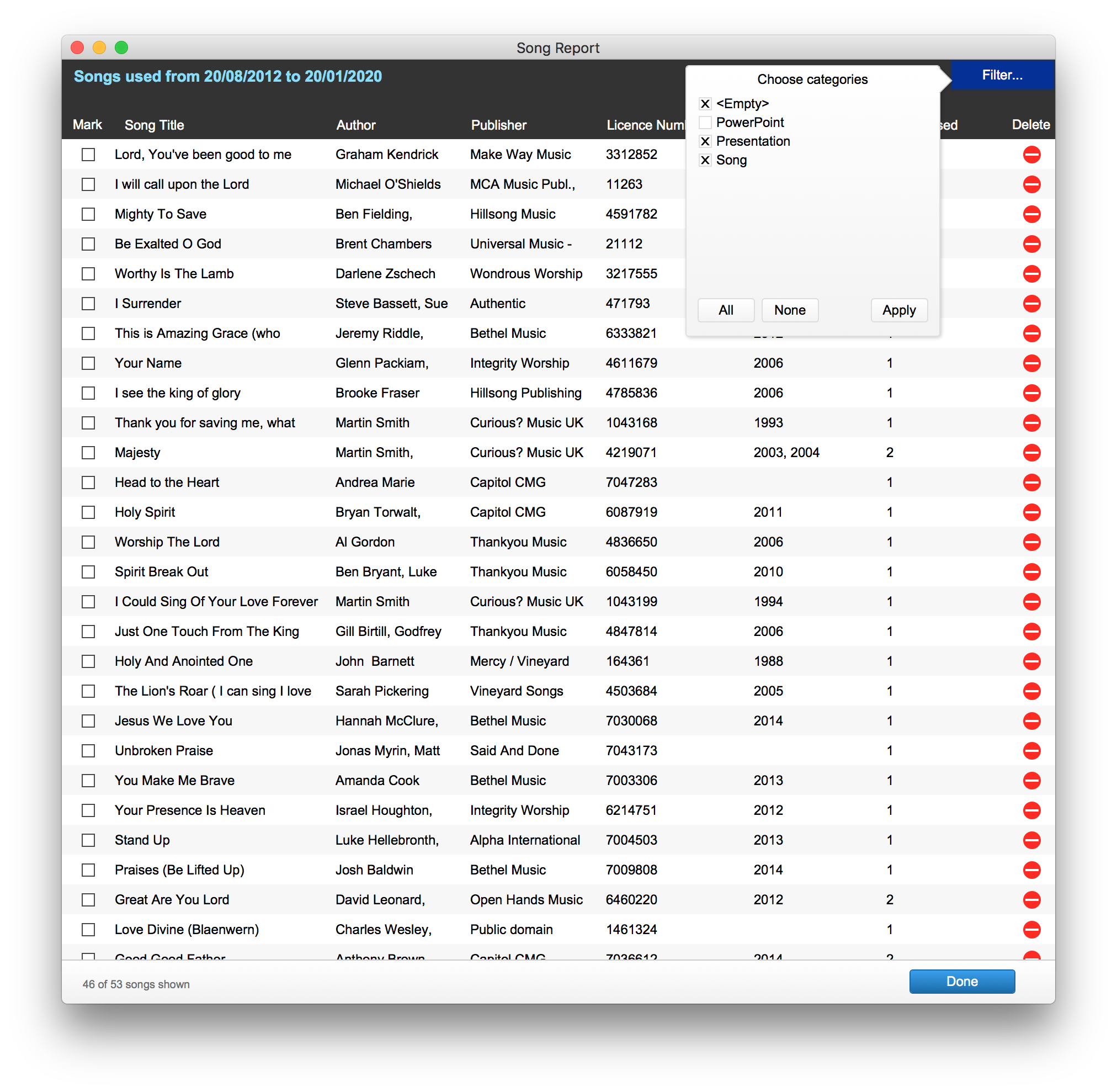
By default, Song will be selected, but you may wish to choose others if you have created some other categories for different song types. <Empty> will show songs without a category. After making selections, click Apply to filter.
You can also sort the songs using the column titles. Click a column title once for ascending or twice for descending order.
Use the Delete button to remove individual rows. This will only affect the current report and not delete from ProPresenter.
|
|
|
|
Minimum System Requirements
|
|
|
|
|
Macintosh
OS X 10.10
2 GB RAM
250 MB disk space
Windows
Windows 7 SP1 Professional or Enterprise Edition (Home Edition is not supported)
1 GHz or faster x86 or x64 processor
1 GB RAM
250 MB disk space
|
|
|
|
|
|
As of the writing of this document, any Mac or Windows operating system later than those listed in Minimum System Requirements is compatible with ProPresenter Reporter.
ProPresenter 5 and 6 are fully supported.
|
|
|
|
|
|
You can register your copy of ProPresenter Reporter without leaving the program.
After you have successfully registered, you will immediately be sent an activation key by Simply Digital.
We do require your contact information to guard against fraud, however this information will not be disclosed to anyone outside Simply Digital.
The licence is valid for a single computer and single organisation only.
|
|
|
|
|
|
After your activation key is sent to you, from the NOT REGISTERED window, click the Activate… button or choose Activate… from the Help menu.
The Activation window will be shown:

The Registered Name and Registered Email do not have to match the details you used when registering your copy of the program. So, even if you personally registered for your organisation, you can enter your organisation’s details here. The activation key needs to be entered exactly as received in the ProPresenter Reporter Activation email. Once this information is entered in the Activate window, and Activate is clicked, the activation key will be permanently associated with the Registered Name and Registered Email. If you need to change this, please contact sales@simplydigital.com.
|
|
|
|
|
|
When starting up, ProPresenter Reporter will do the following:
|
|
|
 |
|
Check for existence of ProPresenter®
|
|
|
|
|
ProPresenter 5 and/or 6 must be present on the computer. If both are detected, you will get a choice of which to choose for the purpose of running a report. If neither are detected, ProPresenter Reporter can not run and your only option will be to exit ProPresenter Reporter.
|
|
|
|
|
Check for activation
|
|
|
|
|
If you have not activated ProPresenter Reporter on the computer you are using, you will be in Unregistered Mode. If you have already received an activation key, click the Activate… button, or choose Activate… from the Help menu to enter this key.
|
|
|
|
|
Check for updates
|
|
|
|
|
If an update is available, ProPresenter Reporter will automatically inform you at startup and give you an option to download the update. If you do not wish to be automatically informed about updates, you can disable this feature by choosing ProPresenter Reporter Preferences… from the ProPresenter Reporter menu (Mac) or Edit menu (Windows).
|
|
|
|
|
|
Unless you have disabled this feature, ProPresenter Reporter will automatically check for updates and inform you at startup if an update is available. If you do not wish to be automatically informed about updates, you can disable this feature by choosing ProPresenter Reporter Preferences… from the ProPresenter Reporter menu (Mac) or Edit menu (Windows).
If you want to manually check for updates choose Check for Updates… from the Help menu.
|
|
|
|
|
|
In ProPresenter®, all songs are assigned to a category. Some are built-in, such as Song, Presentation, Bible and PowerPoint. However, you have the ability to add new ones yourself. ProPresenter Reporter recognises the categories that have been used in your playlists and gives you the option to choose which ones you can report on. ProPresenter Reporter will remember your choices and will automatically use these in the next report. However, you can always make changes when you run the report.
|
|
|
|
|
|
If you do not wish to be automatically informed about updates, you can disable this feature by choosing ProPresenter Reporter Preferences… from the ProPresenter Reporter menu (Mac) or Edit menu (Windows).

|
|
|
|
|
|
The Song Report window will show all the songs you have used in the date range you selected. The Times Used column will show you how many times each song has been used in this period.
|
|
|
|
|
|
For help with activation, check the steps below depending on the message you are getting. If none of these help, please email support@simplydigital.com.
|
|
|
|
|
Unable to connect to activation server
|
|
|
|
|
There is a problem with your internet connection or our activation server is having difficulties. If your internet connection is functioning normally, please try to activate your copy of ProPresenter Reporter later. If you continue to have trouble, please email support@simplydigital.com.
|
|
|
|
|
This activation key is already registered to someone else
|
|
|
|
|
The activation key you have entered has already been registered to a different name or email address or both. Please check within your organisation to see if this has happened, and then contact sales@simplydigital.com.
|
|
|
|
|
This activation key is not recognised
|
|
|
|
|
Activation keys can include zeroes and Os, i’s and l’s in upper and lower case, so it is easy to type them incorrectly. Please make sure you have entered the activation key exactly as received, or copy and paste the activation key directly from the activation email. If you are sure you have entered the activation key correctly and are still having problems, please contact sales@simplydigital.com.
|
|
|
|
Not all songs are showing up in report
|
|
|
|
|
It could be that some songs are not seen because they belong to a category not selected for the report. Try re-running the report with additional or all categories selected, and see if that helps. If that does not help, please contact support@simplydigital.com
|
|
|